Cut vs engrave layers, explained
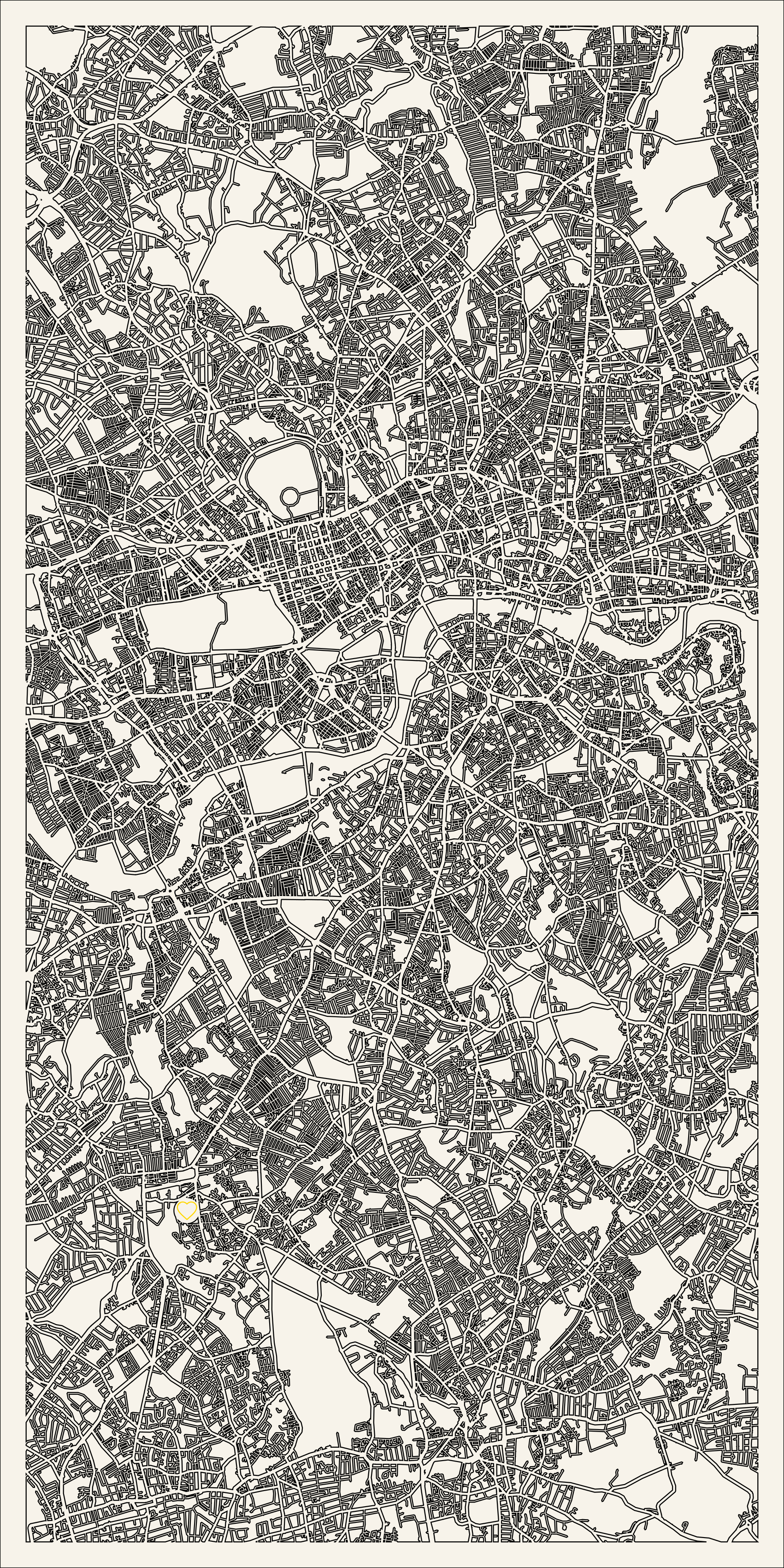
A clean map file speaks your laser's language: what to cut through, what to mark on the surface, and what to leave as a shallow line. Here is the difference and how to set it.
Cut
A cut goes all the way through the material. On a map, the outer frame, the street channels on a cut-out, and the boundary of each layer are cuts.
Engrave
Engraving removes a shallow, filled area — used for park fills, water texture, titles and labels. It is a raster fill, not a line, so it needs a filled shape (which is why parks should be filled, not double-outlined).
Score
A score is a single, light line on the surface — perfect for streets that are too thin to cut safely. Instead of a fragile double outline, a score keeps the road visible and the piece strong.
Why named layers matter
If your file arrives as one tangled outline, you sort hundreds of paths by hand. If it arrives with named CUT / ENGRAVE / WATER layers, you assign operations in seconds. Maperivo exports the second kind.
Assigning in LightBurn and xTool
Import the SVG; each named layer maps to a colour/operation. Set CUT to cut, ENGRAVE (parks/labels) to fill, and the thin-road layer to a light score. Engrave first, cut last. Full walkthrough: how to laser cut a map.
Frequently asked questions
Everything makers and stores ask before their first laser-ready map.
What is the difference between cut, engrave and score?
Cut goes through the material; engrave removes a shallow filled area (parks, labels); score is a single light surface line, ideal for streets too thin to cut.
Why should parks be filled instead of outlined?
Engraving is a raster fill, so a filled park shape engraves cleanly. A double outline just cuts two thin lines and looks wrong.
Turn your next location into a laser-ready product.
Free 14-day trial: 50 maps, no card. Commercial use included.